
Tips · Metadata · CLI
Batch metadata edits
Edit metadata for PDFs in a folder. Use metadata batch (same as GUI Remove metadata) to strip document properties from every file; loop metadata set when only some fields should change. Input PDFs are never overwritten.
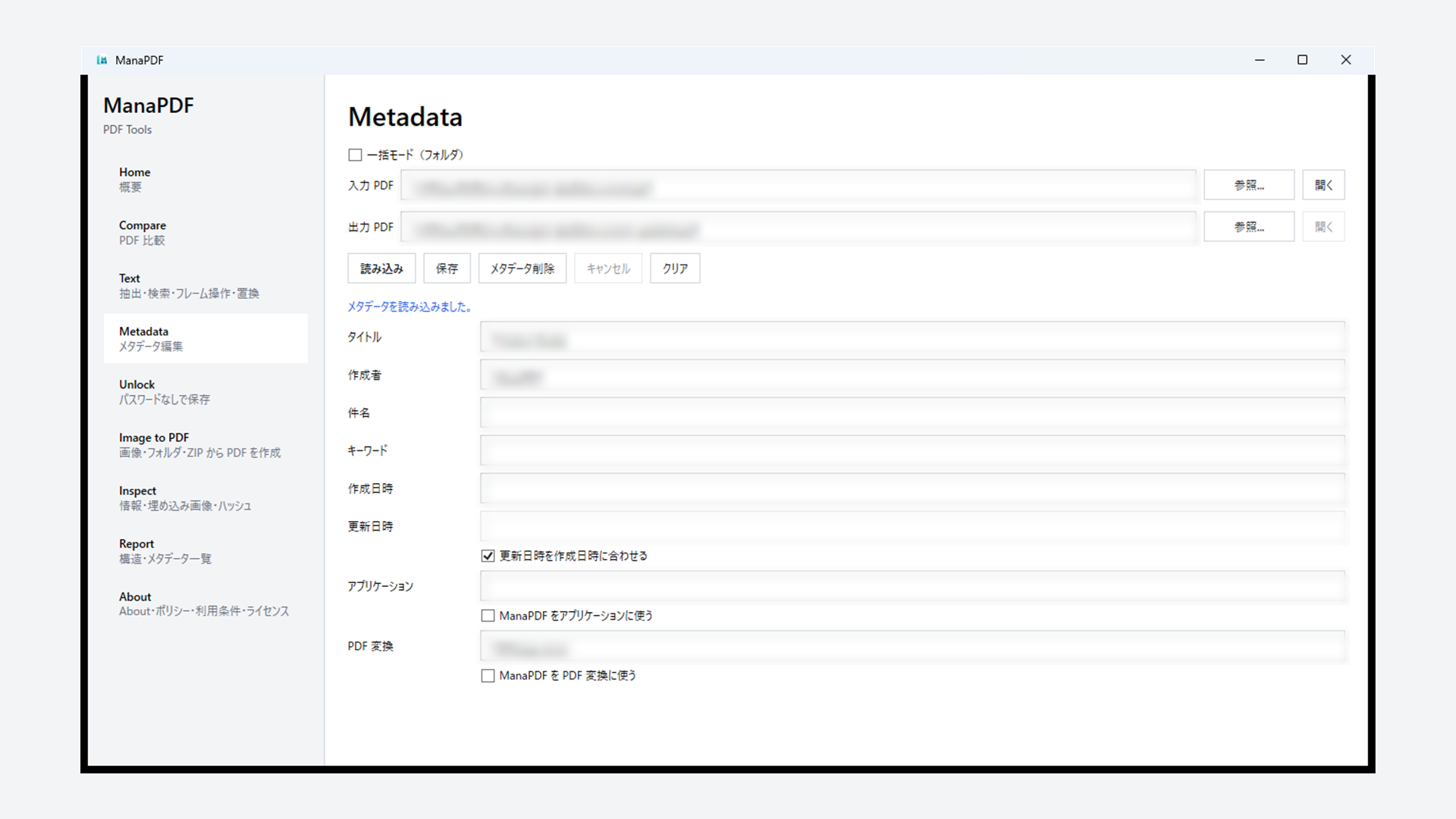
GUI
- Open Metadata from the left menu.
- Check Batch mode (folder).
- Set Input folder and Output folder.
- Fill only the fields you want to apply (blank fields stay as they are).
- Click Save to apply those fields, or Remove metadata to clear them. A password dialog appears for encrypted PDFs.
- Use Cancel to stop a long run.
- Review the result log and open output PDFs to verify metadata.
Which command to use
manapdf metadata batch— scan a folder. Without--title/--author/ … it runs the same removal asmetadata clean; with those flags it updates only the given fields (same asmetadata set). Output goes under--output-dir.manapdf metadata set— update one file with flags like--title, saving to-o.manapdf metadata show— view metadata (read-only).
Preparation
- Open a new PowerShell (or Windows Terminal) and confirm
manapdf versionworks. - Prepare an input folder (e.g.
.\pdfs) and output folder (e.g..\out). - Try one file first, or run
--dry-runto preview targets before the real run.
Example 1 — Remove metadata for a whole folder (metadata batch)
When you want to strip title, author, and other document properties from every PDF in a folder. This is the same action as single-file metadata clean / GUI Remove metadata.
manapdf metadata batch .\pdfs --output-dir .\out --recursive --forcemetadata batch— write cleaned copies of PDFs under the input folder..\pdfs— input folder. Files here are not overwritten; results are written to the output folder.--output-dir .\out— required output folder.--recursive— include subfolders; output keeps the same relative structure.--force— overwrite existing output files; without it, existing outputs are skipped.
Preview before running:
manapdf metadata batch .\pdfs --output-dir .\out --recursive --dry-run--dry-run— list what would happen without writing files.
Example — Set the same author on every file (metadata batch)
When every PDF should get the same Author and keep Title and other fields. This is the same as GUI batch Save.
manapdf metadata batch .\pdfs --output-dir .\out --author "Jane Doe" --recursive --force- Only flags you pass (such as
--author) are updated. Omitted fields stay as they are.
Example 2 — Clear Author per file (metadata set)
When you want Author empty but other fields kept. Only the fields you specify are updated; other metadata is preserved when possible.
$inputDir  = ".\pdfs"
$outputDir = ".\out"
New-Item -ItemType Directory -Force $outputDir | Out-Null

Get-ChildItem $inputDir -Filter *.pdf -File | ForEach-Object {
  $outPath = Join-Path $outputDir $_.Name
  manapdf metadata set $_.FullName -o $outPath --author "" --force
}
Get-ChildItem … -Filter *.pdf -File— PDFs in the input folder top level only (no subfolders).metadata set input.pdf -o output.pdf— read input, write output with selected metadata changes.--author ""— clear Author. Other fields stay as-is unless you pass more flags.--force— overwrite existing output PDFs.
Example 3 — Set Title from filename (without extension)
For Contract_2024.pdf, set Title to Contract_2024. There is no dedicated “title from filename” command — loop metadata set instead.
$inputDir  = ".\pdfs"
$outputDir = ".\out"
New-Item -ItemType Directory -Force $outputDir | Out-Null

Get-ChildItem $inputDir -Filter *.pdf -File | ForEach-Object {
  $title   = [System.IO.Path]::GetFileNameWithoutExtension($_.Name)
  $outPath = Join-Path $outputDir $_.Name
  manapdf metadata set $_.FullName -o $outPath --title $title --force
}GetFileNameWithoutExtension($_.Name)— strip.pdffor the Title string (PowerShell side).--title $title— set PDF Title metadata.- Check how long or unusual filenames look in your PDF viewer after save.
Example 4 — Title from filename and empty Author
Combine examples 2 and 3 in one metadata set per file — one read/write per PDF.
Get-ChildItem .\pdfs -Filter *.pdf -File | ForEach-Object {
  $title   = [System.IO.Path]::GetFileNameWithoutExtension($_.Name)
  $outPath = Join-Path .\out $_.Name
  manapdf metadata set $_.FullName -o $outPath --title $title --author "" --force
}--titleand--authortogether update both in one pass.- Create
.\outfirst (or useNew-Itemas in examples 2–3).
More
Verify after processing:
manapdf metadata show .\out\sample.pdf
manapdf report .\out --recursive -o metadata.csv
metadata show— display Title / Author etc. for one file (no changes).report … -o metadata.csv— export metadata for many PDFs to CSV.
When password-protected PDFs are mixed in (same password for all):
manapdf metadata batch .\pdfs --output-dir .\out --password "your-password" --recursive --force--password— open encrypted PDFs. Never logged or written to JSON output.
Fail the whole run if any file fails:
manapdf metadata batch .\pdfs --output-dir .\out --recursive --strict--strict— non-zero exit code when any file fails (for scripts).