
Tips · Image
Create a PDF from multiple images
Pick corrected images and combine them into one PDF. Straightening, brightness, and cropping are expected to be done elsewhere — ManaPDF handles PDF creation only.
First — how sort order differs
The same folder can produce different page order depending on sort mode. For scans named page1.png … page10.png, pay special attention to natural vs name (lexical) order. Recent Windows Explorer often sorts naturally, which can hide what the CLI will do.
| Sort mode | CLI value | Meaning | When to use |
|---|---|---|---|
| Natural | natural |
Compare numbers in filenames numerically | Default for folder / ZIP. page2 before page10 |
| Name (lexical) | name |
Compare filenames as strings | When you want pure alphabetical order. page10 can come before page2 |
| Modified time | modified |
Ascending file modification time | Near scan order |
| Created time | created |
Ascending file creation time | Not supported for ZIP input |
Suppose a folder has:
page1.png
page2.png
page10.png
PDF page order by sort mode:
| Sort | Page 1 | Page 2 | Page 3 |
|---|---|---|---|
--sort natural |
page1.png |
page2.png |
page10.png |
--sort name |
page1.png |
page10.png |
page2.png ← 2 after 10 |
--sort name does not error — but page order may not match what you expect. For page1 … page10 without zero-padding, natural is usually safer.
With zero-padded names (page01.png, page02.png, page10.png), lexical order often works as expected too.
| Filename pattern | natural |
name |
|---|---|---|
page1 … page10 (no padding) |
1 → 2 → 10 (expected) | 1 → 10 → 2 (often wrong) |
page01 … page10 (zero-padded) |
01 → 02 → 10 | 01 → 02 → 10 (usually expected) |
img_1, img_10, img_2 |
1 → 2 → 10 | 1 → 10 → 2 |
Passing one folder on the CLI uses natural order even without --sort. When you list multiple file paths, order is argument order unless you add --sort.
Preview order with --dry-run before the real run:
# Natural (page1 → page2 → page10)
manapdf image .\scans -o output.pdf --sort natural --dry-run

# Lexical name (page1 → page10 → page2 possible)
manapdf image .\scans -o output.pdf --sort name --dry-run
GUI
- Open Image from the left navigation.
- Choose input with Add images or Add folder (one mode at a time).
- For multiple files only: reorder with Move up / Move down. For folder or ZIP: pick Sort (see table above).
- Confirm or change Output PDF file.
- Optionally set Title and other metadata.
- Click Create PDF and verify the output.
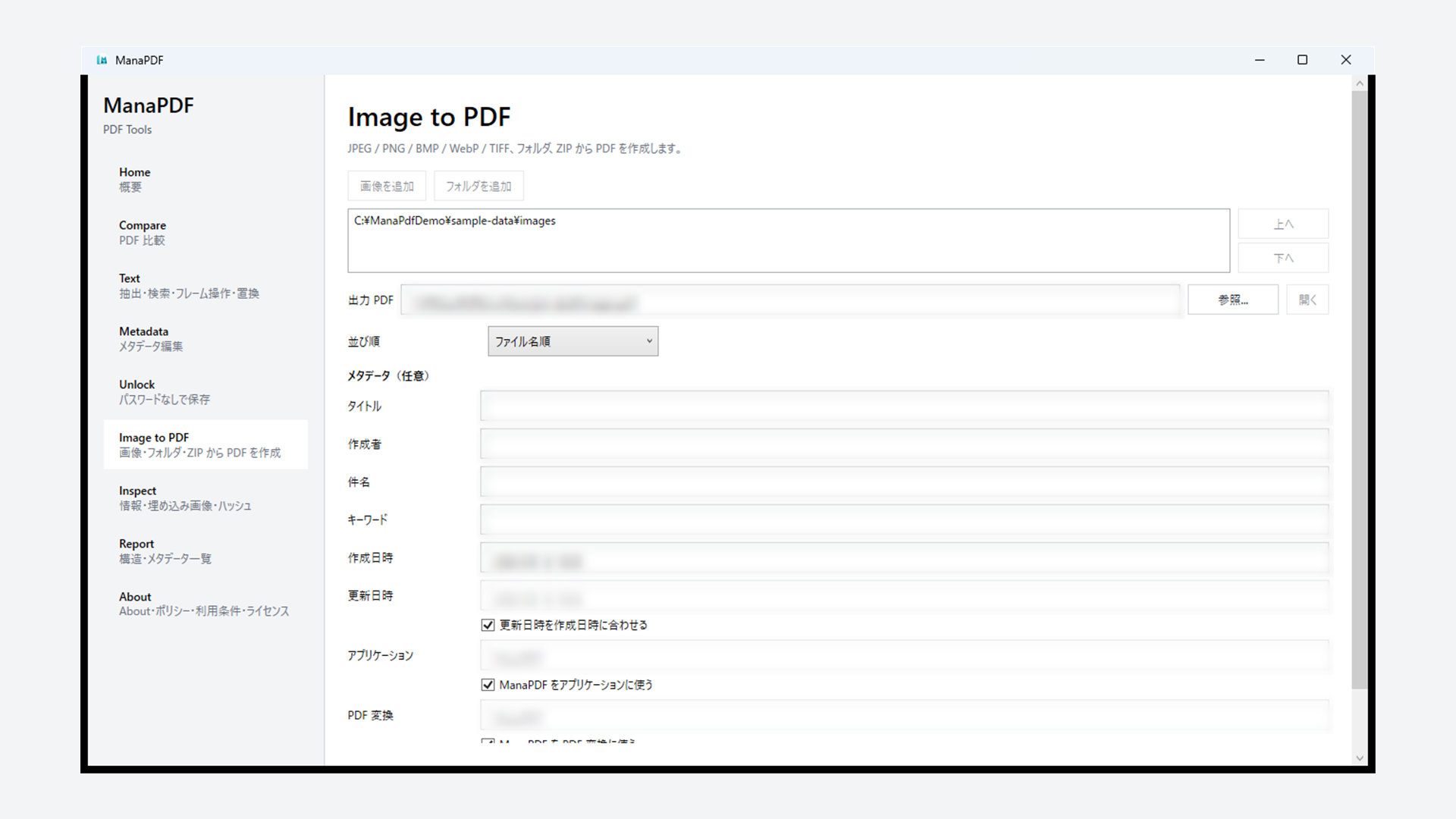
CLI examples
Folder in natural order (good for numbered scans):
manapdf image .\scans -o output.pdf --sort natural.\scans— input folder (top-level images only; no subfolders).-o output.pdf— required output path.
List files and sort by name (requires explicit --sort):
manapdf image page3.png page1.png page2.png -o output.pdf --sort name- No
--sort→ argument order (page3 → page1 → page2). --sort name→ page1 → page2 → page3.- With unpadded
page10.png, name sort can become 1 → 10 → 2.
Set metadata:
manapdf image .\scans -o output.pdf --sort natural `
  --title "Scan bundle" --author "Acme"
What you can set explicitly (CLI)
- Sort —
--sort natural|name|modified|created. Multiple file paths: no sort unless--sortis set. - Output —
-o/--output(required). - PDF metadata —
--titleetc. (optional). - Overwrite —
--force. - Preview only —
--dry-runshows order without writing.
Failure examples
Wrong sort (not an error, but wrong pages)
Lexical sort on page1.png … page10.png:
manapdf image .\scans -o output.pdf --sort name --dry-run- Command succeeds but pages may be
page1 → page10 → page2 → …. - Fix: use
--sort naturalor zero-pad filenames (page01).
CLI usage errors
Mix image and folder with --sort:
manapdf image leading.png .\scans -o output.pdf --sort name- Error: with
--sort, pass image files only — not a folder mix.
--sort on a single file:
manapdf image page1.png -o output.pdf --sort natural- Error:
--sortis not valid for a single file.
--sort created on ZIP:
manapdf image archive.zip -o output.pdf --sort created- Error:
createdis not supported for ZIP.