
Tips · Unlock · Batch
Batch unlock PDFs in a folder
When you have many PDFs from the same workflow (weekly reports, etc.). Use GUI batch mode or CLI unlock batch to create unprotected copies in bulk.
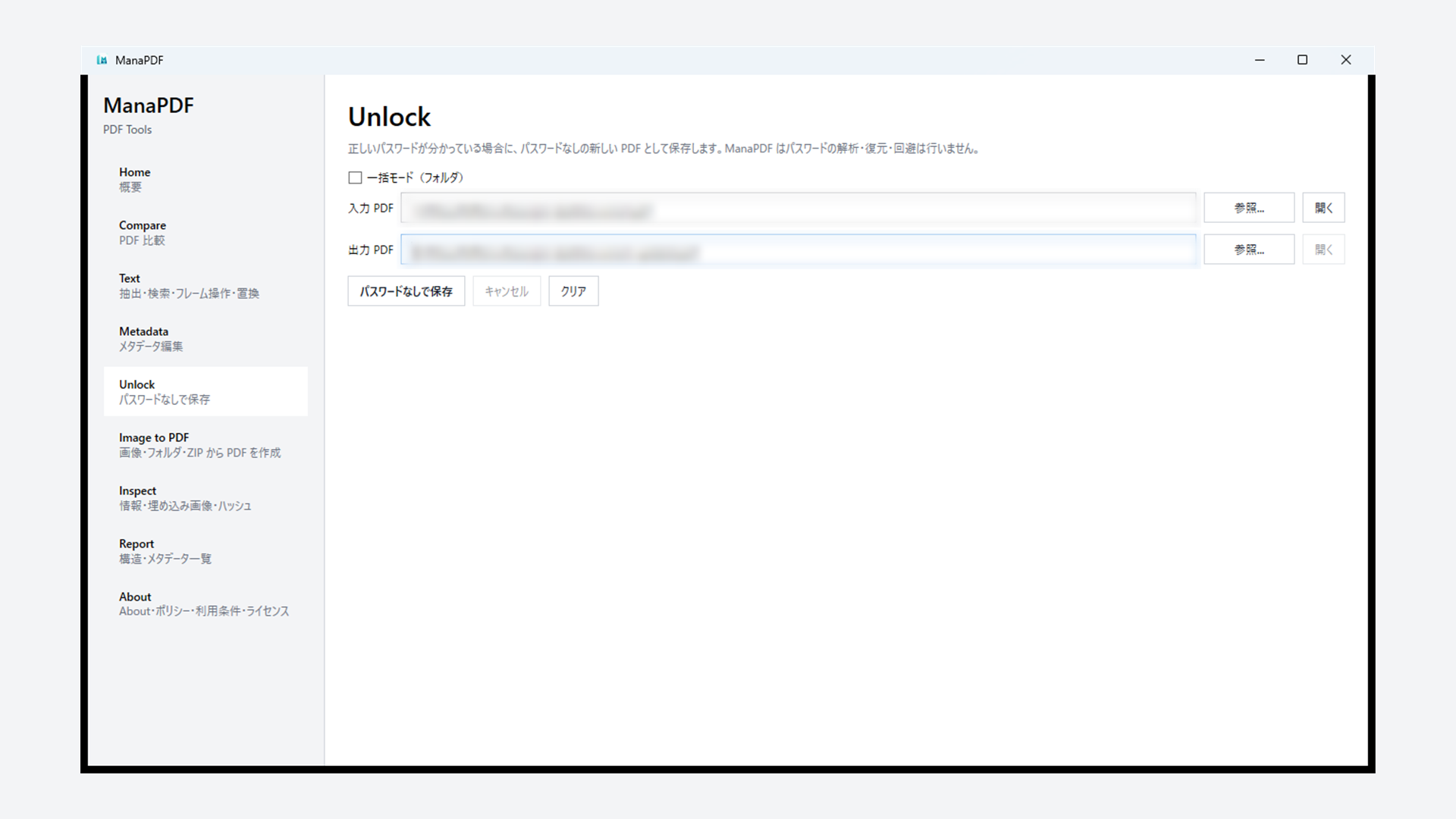
GUI
- Open Unlock from the left navigation.
- Enable Batch mode (folder).
- Set Input folder and Output folder.
- Optionally enable Include subfolders.
- Click Save unprotected copy and enter the password when prompted.
- Use Cancel to stop mid-run if needed.
- Open output PDFs and confirm they no longer ask for a password.
CLI basics
Same password for every PDF in the folder:
manapdf unlock batch .\pdfs --output-dir .\out --password "your-password" --recursiveDifferent password per file (path,password CSV, UTF-8 BOM OK):
manapdf unlock batch .\pdfs --output-dir .\out --password-csv passwords.csv --recursiveInteractive entry:
manapdf unlock batch .\pdfs --output-dir .\out --ask-password --recursiveunlock batch— scan folder PDFs and write unprotected copies under--output-dir. Inputs are never modified.--password-csv— one row perpdf-path,password. Skip a header row if the first line ispath,password. The path column may be a filename only (e.g.statement.pdf), a path relative to the input folder, or a full path.- Passwords with commas or quotes: quote CSV values like
"pa""ss,word". - Processing order is natural sort by filename (
file2.pdfbeforefile10.pdf). Use--dry-runto preview targets and order. - Without
--recursive, outputs use the same filename in the output folder root. With subfolders, output mirrors the input tree.
Preview before running:
manapdf unlock batch .\pdfs --output-dir .\out --recursive --dry-runAdd --strict for a non-zero exit if any file fails.
Example 1 — Filename only in CSV path column
When PDFs sit directly in the input folder, the first CSV column can be filenames only.
path,password
statement_202403.pdf,abc123
contract_acme.pdf,secret99
invoice.pdf,monthly
manapdf unlock batch .\pdfs --output-dir .\out --password-csv passwords.csv --force- CSV
pathvalues must match real PDF names (case-insensitive on Windows). - For PDFs in subfolders, use paths relative to the input folder, e.g.
docs\locked.pdf(run with--recursive).
Example 2 — Line-by-line password file
When passwords.txt has one password per line, --password-csv cannot map by line number — it matches by path. Build a CSV aligned to ManaPDF’s processing order (natural sort), then run unlock batch.
passwords.txt example (line 1 for statement_202403.pdf, line 2 for contract_acme.pdf, …):
abc123
secret99
monthly
Generate CSV in PowerShell and batch unlock:
$inputDir  = ".\pdfs"
$outputDir = ".\out"
$pwdFile   = ".\passwords.txt"

# Same targets and order as ManaPDF dry-run
$plan = manapdf unlock batch $inputDir --output-dir $outputDir --dry-run --json --quiet | ConvertFrom-Json
$passwords = Get-Content $pwdFile | Where-Object { $_ -match '\S' }

if ($plan.files.Count -ne $passwords.Count) {
  throw "PDF count $($plan.files.Count) does not match password lines $($passwords.Count)"
}

$csvLines = @("path,password")
$root = (Resolve-Path $inputDir).Path
for ($i = 0; $i -lt $plan.files.Count; $i++) {
  $rel  = $plan.files[$i].input.Substring($root.Length).TrimStart('\', '/')
  $pass = $passwords[$i] -replace '"', '""'
  if ($pass -match '[,"]') { $pass = "`"$pass`"" }
  $csvLines += "$rel,$pass"
}
$csvPath = Join-Path $env:TEMP "manapdf-passwords.csv"
$csvLines | Set-Content $csvPath -Encoding utf8

manapdf unlock batch $inputDir --output-dir $outputDir --password-csv $csvPath --recursive --force
--dry-run --json— no unlock; returns target PDFs and order (same as the realunlock batchrun).Get-Contentlines map top-to-bottom to PDF 1, 2, … Empty lines are skipped.- If counts differ, the script stops. Preview order with plain
--dry-runfirst. Get-ChildItem | Sort-Object Namemay disagree with natural sort (e.g.file10.pdfvsfile2.pdf). Trust dry-run JSON for order.
Example 3 — Parse password from filename into CSV
If filenames embed passwords (e.g. statement_202403_pw-abc123.pdf), extract them in PowerShell and build path,password CSV before unlock batch.
$inputDir = ".\pdfs"
$csvPath  = ".\passwords.csv"

$rows = Get-ChildItem $inputDir -Filter *.pdf -File | ForEach-Object {
  if ($_.Name -notmatch '_pw-(.+)\.pdf$') {
    Write-Warning "Name does not match password pattern: $($_.Name)"
    return
  }
  $pass = $Matches[1] -replace '"', '""'
  if ($pass -match '[,"]') { $pass = "`"$pass`"" }
  [pscustomobject]@{ Line = "$($_.Name),$pass" }
}

"path,password", ($rows.Line) | Set-Content $csvPath -Encoding utf8
manapdf unlock batch $inputDir --output-dir .\out --password-csv $csvPath --force- Example uses text after
_pw-before.pdf. Adjust the-matchpattern for your naming rules. - Output PDFs keep the original filename (strip password from names separately if needed).
- For subfolders, use
Get-ChildItem -Recurseand put relative paths in the CSV path column.
Example 4 — Loop single unlock (no CSV)
For a small set, or when you want to wire passwords to PDFs directly in a loop. Output paths can match batch output names.
$inputDir  = ".\pdfs"
$outputDir = ".\out"
$passwords = Get-Content .\passwords.txt | Where-Object { $_ -match '\S' }

$plan = manapdf unlock batch $inputDir --output-dir $outputDir --dry-run --json --quiet | ConvertFrom-Json
if ($plan.files.Count -ne $passwords.Count) { throw "Count mismatch" }

for ($i = 0; $i -lt $plan.files.Count; $i++) {
  $in  = $plan.files[$i].input
  $out = $plan.files[$i].output
  manapdf unlock $in -o $out --password $passwords[$i] --force
}
unlock input.pdf -o output.pdf --password— one file. No--ask-passwordon single unlock.- Using dry-run
outputpaths matchesunlock batchdestinations and filenames. - For many files, example 2 (CSV +
unlock batch) is faster and easier to resume.